Thursday, April 9, 2009

Kino Video Editor on Ubuntu

There are lots of good tools in the Free Open Source Software world for capturing and editing video, but common to making almost any movie is a basic understanding of the steps to building a good story using a storyboard editor. This article will help you take the very first step toward creating a movie by using the very simple storyboard video editing program called Kino to create a story.

Kino was born to tell stories

Creating even a short movie can become very complex very quickly, so it’s important to keep in mind what you are doing and how it all fits into the bigger picture of making your movie. Kino is a primarily a simple storyboard non-linear video editing program with some compositing capabilities, as opposed to tape-to-tape linear editing or more complex non-linear compositing software such as Cinelerra, The Open Movie Editor, or KDEnlive.

Before computers, movies were edited by actually cutting film tape. That process was called linear tape-to-tape editing. It required careful planning, because editing was destructive, since actual segments of tape were cut. It was “linear” because the inserted tape segments were literally attached to preceding and following segments to form a continuous whole.

Computers allow us to do non-destructive, non-linear editing. We can easily incorporate all kinds of music, still pictures, and video into a single movie. We can also separate out the video from the audio, and substitute still images or other video segments while the audio from the first track continues to roll over those newly added elements. Those new elements are called “assets” and the process of adding new elements is called “compositing.”

But newbies can become frustrated with complex compositing software, such as Final Cut Pro or Cinelerra or the Open Movie Editor because the user interface throws lots of options at the user, thereby confusing them. The advantage of starting out with Kino is that it has a very simple user interface. Here is a screenshot of the Kino interface (slightly modified by kSnapshot):

Kino

Kino’s simplicity allows you to develop the basic skills of putting together a story, so that you can later use a more complex tool such as Cinelerra or KDEnlive or the Open Movie Editor to add other assets, such as stills, transitions, music, and other video clips. Plus, compared with the hefty price tags of some of the non-Free applications like Final Cut Pro at $1,299.00 USD, Kino starts looking very inviting, indeed. At today’s prices for RAM and hard drives, you could build a monster rendering machine for the price of the non-Free video editors!

Kino has a few drawbacks. It will only accept .dv files. It is not suitable for adding lots of assets of different formats, and it has limited transition effects available. For those things you would use a more powerful compositor like Cinelerra or KDEnlive or The Open Movie Editor. But for speed and simplicity of building your story, Kino is hard to beat. The Digital Tipping Point crew has used Kino for sharing rough edits and all of our 1,229 five minute “source code” video posted to the Internet Archive’s Digital Tipping Point Video Collection has been rough-edited with Kino. Kino is capable of industrial work.

The purpose of this article is to walk newbies through the basic process of capturing and rough-editing your video to create a story using Kino.

How to capture your footage

Kino does not capture from USB, and so you will need to have access to a camera or tape deck that has IEEE 1394 (firewire). Most cameras and tape decks have 1394 ports. For the Digital Tipping Point film, I am using a “prosumer” Sony PD-170 camera that initially cost about $4,500.00 and a Sony DSR-45 tape deck that cost a similar amount; but I have also captured video from a cheap consumer camera by Canon that cost less than $300.00 USD. I am using Ubuntu Hardy, but I have used Ubuntu Gutsy and Fiesty with equal success, as well as openSUSE 10 and higher. In each case, the procedure was the same for capturing video, and it was dirt simple, either using Kino or the command line.

Kino is a wrapper for dvgrab when it comes to capturing video. To start the capture, simply connect your camera or tape deck via the 1394 cable. If you are using a camera, make sure that the camera is turned on and is in VCR mode (as opposed to camera mode).

Start Kino either by mousing to it or by typing kino at the shell prompt. You will be presented with Kino’s default screen, which is similar to the first screenshot above, except without the picture of the teacher or the thumbnails. On the far hand side of your Kino screen, you will see tabs for various functions. Click on the capture icon:

icon

You will now be presented with Kino’s capture window. It will be black in the middle, with VTR (video tape recorder) buttons below the black window that will allow you to do the following: turn VTR control of the attached camera or tape deck on or off (the AV/C button); start video capture (the capture button, whose red light will illuminate when you click it to start capture); stop video capture by clicking the “stop” button; capture a still image by clicking the “still” button; and mute the sound during capture by clicking the “mute” button (not recommended, as it is much easier to strip sound out later than add it later).

Time Line

Once you have turned on VTR control of your camera or tape deck, look near the bottom center of your screen, and you will see the typical icons to control the tape in the machine!

Those buttons will, in order, allow you to do the following: play; pause; rewind; fast forward the tape; move to tape; move to the start of the scene; or move to the previous frame, next frame, or the end of the video. Hovering your mouse over those buttons will, of course, give you a clue as to their purpose.

Before clicking the “capture” button, be sure to type in a valid path for storing the video as it is captured. Type the path name in the field labeled “File” just below the “capture” button.

By default, dvgrab, running under Kino’s GUI, will chunk out your video capture into 1 GB files for every 4.51 minutes of video. Those are huge video files, do plan your file storage accordingly!

If you so desire, you can also capture video from the BASH command line with this command under Ubuntu:

$ sudo dvgrab –format raw [filename]

Choose your path carefully

There is an art to choosing a path for saving your video! Kino offers you the option of saving your work as XML files as you edit, and I highly recommend that you do so. Saving your work as XML files will open up a whole new world of potential collaboration with others on your team, as long as they have the same original video and the same relative path. Think about the best method for saving your XML files. Do you want them in a separate directory from the raw .dv files Kino will produce, or do you want them in a separate directory?

For the Digital Tipping Point project, we are creating and saving four types of files, and I would recommend that you do the same thing if you have adequate hard drive space, due to the large amount of time and processing power consumed by rendering and compressing video. We save four types of video files: the orignal captured .dv files; the rough-edited .dv files; the .kino files; and the compressed video files, which are each stored in separate paths, respectively:

/home/username/capturedDV

/home/username/editedDV

/home/username/SMIL

/home/username/transcodedMPG_OGG

Unless you know that you are going to toss your work shortly after creating it, you will want to save yourself the time of re-rendering and recompressing work by saving each of the steps of your work. With the magic of XML, you can tuck away your edits in XML files and instantly call up your past edits, or your colleagues’ edits, simply by clicking on the files in Konqueror or Nautilus and opening them with Kino. This is a huge time saver, as a uniform system allows you to automate the process of rendering and compressing video.

You will also appreciate an orderly file structure as you get deeper into your editing, because you will make lots and lots of revisions, and you will want to know where you stored your work. The beauty of XML means that you will be able to mix and match your work without consuming endless gobs of hard drive space with unnecessary rendering of edits that could be saved in these tiny XML files.

The Kino GUI’s main features

The Kino GUI is almost self-explanatory for creating a storyboard of your video, but a newbie will appreciate some tips. After capturing your video, load it by clicking the familiar “open” icon in the upper right hand corner, or by clicking File > Open. (Note that if you already have a video loaded in Kino, clicking open will cause Kino to dump your current video file. More on this later).

Once you have opened your video, you will notice that a thumbnail appears on the left hand side of Kino window. Note that the bar dividing the main kino window will allow you to shrink the main Window so that you can get more information on the thumbnails, such as the paths and file sizes for those thumbnails.

Kino’s GUI is smartly and simply structured around the editing of “scenes.” When you load a single video file, you will probably have only one “scene” in the file, depending on how you shot the video in that file. Below the main Kino window is a time line with a triangular arrow indicating where you are in the video. On my Ubuntu screen, pictured below, the triangle is orange. By grabbing this triangle with your mouse, you can quickly advance through the entire video file.

VTR Menu

Below the time line is the now familiar VTR menu of buttons for playing, rewinding, and fast-forwarding the video. Below the VTR menu, from left to right, are the following: the properties menu, which gives you a read-out of the size and format of your file; a clock, which allows you to monitor your video in frames or a variety of time formats (I switch back and forth between the “clock” setting and the “frames” setting, depending on my needs.) To the right of the clock setting is the duration read-out, which will give you the total time of your video.

The secret is creating scenes

Kino is great because its GUI quickly and easily lets you separate one scene from another, so that you can re-arrange those scenes to create a story. Click on the “Edit” tab on the far right hand side of your Kino Window to make sure you are using the most simple of the two Kino editing interfaces. The other interface, the “Trim” tab, allows you more detailed control, but it is also more confusing for new users.
After clicking on the “Edit” tab, look at the the top center of your Kino window for two icons which look like | symbols with arrows point toward and away from the | symbol. Those are your primary tools for creating scenes in Kino:

Arrows

By hovering your mouse over these arrows, you will see that these buttons allow you to separate scenes and merge a scene to a following scene or scenes. As you separate scenes, thumbnails appear on the left of your screen; as you merge them, the thumbnails disappear. Likewise, as you create scenes, a white break will appear on the timeline, as shown in the screenshot above of the orange triangle.

If you want to add more video, you will need to look in the upper left hand side of your icon bar for these icons, called the Insert Before and Insert After icons, respectively. Clicking on those icons lets you insert new video before or after the “current scene.” The current scene is also highlighted in the thumbnails section to the left of your screen.

Icons

Watch your video, and take notes!

Create your story by watching your footage in Kino and then taking detailed notes on the start and stop times of footage that is interesting to you. Write it out on a separate piece of paper or on a word processing program on your notebook as you watch Kino on your desktop machine. Re-arrange your notes to create the outlines of your story, and then use those notes as the guideline for moving your thumbnails around by dragging, dropping, and deleting scenes with your mouse. You can map your keyboard to do most of this work, but in the beginning, you will want to depend heavily on your mouse, because it is such an intuitive way of controlling the Kino interface.

Special effects come second!

Kino will allow you to add music and create special effects such as adding music or fading your audio levels up or down, or creating transitions such as wipes, dissolves, or by pixelating or zooming your video, but don’t make the mistake of getting caught up in tricks before you have a story. Audiences are now fatigued with special effects. They have seen it all and so they are jaded.

The runaway success of “Slumdog Millionaire” in the March 2009 Academy Awards shows that audiences expect a good story line. By contrast even a great special effects movie like “Batman: The Dark Knight” succeeded not so much because of the special effects, which audiences expected and took for granted, but rather because the story of Keith Ledger’s Joker character was so compelling. By spending time with ordinary pencil and paper and the simple storyboard editing GUI of Kino, you can lay a good foundation to tell a story which will move your audiences.

Read more...

Tuesday, April 7, 2009

HowToJACKConfiguration

In order to get the most out of JACK, you will want the lowest possible latency. It can be a daunting task at first, because there are a lot of settings and if you change them a certain way, you can cause the server to not start up properly.

Firstly, you will want Real-Time capabilities; either install the ubuntustudio-audio package, or read through the UbuntuStudioPreparation page for help on getting your studio set up properly.

Now, open up QjackCtl, and change the settings in here. Generally, to get the lowest latency, you're mostly concerned with the Frames/Period, Sample Rate, and Periods/Buffer settings.

Creative PCI card

For a Creative Audigy2 ZS PCI card, these settings seem to work well on my system (actual settings may vary for your card/system):

Audigy2ZSJACKSettings.png

As you can see, the latency is as low as just under 3ms. Not bad! You can even make it less if you lower the Frames/Period from 64 to 32, 1.33ms. A good, acceptable setting is 128, with a latency of 5.33ms.

You must save the settings and then try starting the JACK server before you will know if the settings work or not. Your ultimate goal is to reduce the number of Xruns you get to 0, while still having an acceptable latency. Many people have no issues with 10ms latencies, or even higher. Your ability to get low latencies while still avoiding Xruns will depend on several factors: your overall system speed, your particular sound card and its abilities, and your kernel configuration. If you aren't sure what Xruns are all about, re-read the Studio Preparation page.

Some sound cards have issues with sampling rates of 44.1KHz, and some sound cards have issues with 48KHz sampling rates. You probably will want to try using 48KHz first, and if you can't get settings that work, drop it down to 44.1KHz and try that.

Firewire cards

Configuration here is a bit trickier. As of 8.04, the library used is called freebob. The future of Firewire under linux is freebob "2.0", called ffado. See http://www.ffado.org/?q=node/130 for a disambiguation.

As seen in the Hardware section (https://help.ubuntu.com/community/UbuntuStudio/HardwareOptimization), first check that your card is supported. Then you'll have to play with the configuration options.

There, the freebob "Using" (http://freebob.sourceforge.net/index.php/Using) and "FAQ" (http://freebob.sourceforge.net/index.php/FAQ) pages are your best friends, along with a bit of Googling.

Here is how I configure my Edirol FA-66:

  • be sure to select the "freebob" Driver.
  • be sure to select the right interface (by trial and error). In my case, my card is called hw:1
  • check the "Realtime" box, of course
  • play with the settings to reduce latency while keeping a stable setup

jack-firewire-edirol-fa66.png

Auto-starting your setup

Once you get the latency settings right how you want them, we recommend that you have QjackCtl automatically start the JACK server when you launch it. Check off the boxes to make your config look like this:

QjackCtlMiscSettings.png

Be aware though automatically starting JACK can cause the daemon (jackd) and/or the GUI (qjackctl) to crash/freeze if device settings change between two sessions (for example, a USB soundcard can get different device numbers across sessions). If so, set the appropriate entry (autolaunch) to 0 in the ~/.jackdrc file, qjackctl should work again.

Read more...

Making your Microphone Work

If you're having trouble getting your audio input to work in programs like sound-recorder or Skype, it may just be because Ubuntu ships with the necessary options disabled and hidden away in hard-to-find places. Here's what you do to get a microphone plugged into an audio port going:

Open the Volume Control window, either via:

  • Right-click on the speaker icon, by default at the right of the top desktop panel, and select Open Volume Control

  • from the command line, run gnome-volume-control

In the Volume Control window ...

  1. Set up the preferences: Choose the menu option Edit -> Preferences

    • In the Preferences dialog, scroll well down and check Capture. Close the Preferences dialog.

  2. Click the new Recording tab

    1. Click the microphone and speaker icons at the bottom of the Capture item to remove the red X's

    2. Move the volume sliders up to their maximum setting

If your microphone still does not work

If your microphone still does not work in apps, try recording using gnome recorder to test basic recording function. If this fails, it is unlikely that other apps can work without further tweaking.

In some cases with Intel HDA sound chipset, ALC861VD, you may need to configure your alsa setup.

[More information needed for configuration]

Read more...

Install Ubuntu from a USB stick

This pages describes how to install Ubuntu by copying the contents of the installation CD to an USB drive (such as a self-contained flash drive or a Memory Stick or SD card reader) and making the USB drive bootable. This is handy for machines like ultra-portable notebooks that do not have a CD drive but can boot from USB media.

The main steps are:

  • Prepare the USB drive
  • Boot the computer from your USB drive.
  • Install Ubuntu as you would from a normal boot CD

Note: It is highly recommended to use the latest version of Ubuntu to prepare your USB drive.

See also the instructions for USB drives from the official Install Guide.

Check your USB drive

Booting from USB storage can be very handy, but there is no guarantee that it will work with your particular combination of computer and USB drive. Even if you are able to boot from your USB drive on one computer, this does not mean that it is going to work with the next one. You can try experimenting with different settings in your PC's BIOS to make it work.

Make sure to pick a drive that is large enough to hold the contents of the installation CD (about 700MB), 1GB is recommended. Versions of SYSLINUX before 3.00 require the use of a FAT16 file system, which most 2GB or smaller USB drive come formatted with anyway. This is the most compatible file system, and is recommended. As of version 3.00, SYSLINUX works with FAT32 as well, which is handy for users of larger drives.

Insert the USB drive you want to use for the installer. A few seconds after plugging in the USB drive run the dmesg command or sudo fdisk -l to find the device name it was assigned. The rest of the instructions refer to /dev/sdX1, remember to replace X with your device location.

Automatic Approaches

Ubuntu USB desktop image creator

Recomended Default method

Ubuntu USB desktop image creator (usb-creator)

From the 8.10 release on, Ubuntu includes the usb-creator by default on all liveCDs and installations.

This is a simple utility designed to make bootable USB desktop images from Ubuntu CDs. Booting from this USB drive will behave just as if you had booted from the install CD. It will show the language selection and then the install menu, from which you can install Ubuntu onto the computer's hard drive or launch the LiveCD environment.

You can find it in intrepid in System-->Administration-->Create a USB startup disk, if it is not there then as normal run the following command in the terminal :

Make sure the software-sources are activated if you are on a live cd (software sources or sudo gedit /etc/apt/sources.list ), then install by :

  • sudo apt-get install usb-creator

It should do everything needed you just need to have a live cd in you CD-Rom or show the usb-creator the ISO image of it and the rest of the process is automatic! (for more info how to use this tool directly by just popping in a liveCD to a Drive in a running Ubuntu desktop see also "Live USB creator" below, note that it also works directly with downloaded .iso images)

Other external methods

UNetbootin (GUI-based, runs from either Windows or Linux)

UNetbootin automates this task by providing a GUI to create a bootable Ubuntu Live USB drive from an ISO file, and can be run from both an installed Windows or Linux system, or from a liveCD.

http://sourceforge.net/dbimage.php?id=167328

(optional) If you need to activate the original Ubuntu livecd boot menu, for example if you want to disable the framebuffer or read the Ubuntu livecd HELP screens and cheatcodes, please make these changes to your USB drive after your UNetbootin installation is completed:

1) Delete the SYSLINUX.CFG file or rename it to be SYSLINUX.OLD

2) Enter the ISOLINUX folder and rename the ISOLINUX.CFG file to be SYSLINUX.CFG

3) Move up to the top level and rename the ISOLINUX folder to be SYSLINUX

Comment: Does not work with 8.10 intrepid net install - fails to detect available hard drives - any ideas?

Portable Linux

http://rudd-o.com/new-projects/portablelinux/screenshot

This will install the LiveCD environment from your install CD onto the USB drive. When you boot from USB, it will show you a GRUB menu with one option in it, which will then take you directly into the LiveCD environment. Persistence is setup automatically, so it will remember any changes you make between reboots. You can also use the built-in GRUB to launch other disk images, like MS-DOS or memory test.

Live USB creator (GUI-based, runs from Live CD)

Live USB creator automates the process of creating a bootable Live USB system from a running Ubuntu Live CD. Simply run the Live CD, install the tool and start the Live USB installation from the System administration menu.

https://launchpad.net/liveusb -- probono

http://klik.atekon.de/liveusb/screenshot.png

You can run the tool from your normal desktop, just insert the Ubuntu Live CD and run it.

Comment: I don't use the Live CD, but have Ubuntu 8.10 installed in my hard disk. Yet, I found this very handy tool already installed in my system, under the System administration menu.

You may encounter an error when trying to boot from the USB drive, something like "Missing operating system". Make sure that you can mount the USB drive on a normal Ubuntu install, and that you can browse it in the file browser. If you can't, it hasn't been created properly. I found that using fdisk to delete the partition on the drive first, then running liveusb, worked nicely.

isotostick.sh (Command-line shell script, runs from Linux)

Warning: Running scripts from untrusted websites is potentially dangerous!

The easiest way, which also works with the Desktop installer, is to use the isotostick.sh script from http://www.startx.ro/sugar/ Download the script, make it executable and run the script like this ( alternate link : http://download.ubuntu-fr-secours.org/isotostick.sh ):

sudo apt-get install syslinux mtools
wget http://download.ubuntu-fr-secours.org/isotostick.sh
chmod +x isotostick.sh
sudo ./isotostick.sh ubuntu-7.10-desktop-i386.iso /dev/sdX1

Don't forget to replace /dev/sdX1 with the partition name of your USB drive found in the previous section! You will see some "operation not permitted" errors when the script tries to copy the symlinks for /dists/stable and /dists/unstable. This is because fat16 file systems do not handle symlinks, but it will not cause any problems.

Now you can boot from the USB drive and install Ubuntu like as if you had booted from the Desktop CD.

Comment: Does not work with ubuntu-8.10-server-amd64.iso - says a common cdrom drive could not be found and won't proceed with installation - any ideas? Comment: Trying to use this on a Feisty machine to copy a Gutsy (livecd) iso. The script does not appear to copy all of the folders. It also looks for /usr/bin/syslinux/mbr -- which is not present with syslinux from the Feisty repos. --JulesTheMisfit Comment: Seems to work, hardy.iso on a hardy machine. ---Bas

ubuntu-server-flashdrive-installer.sh (Command-line shell script, runs from Linux)

The UbuntuServerFlashDriveInstaller was developed from the instructions at this forum post.

Comment: Does not work with ubuntu-8.10-server-amd64.iso - says no usable ISO found - any ideas?

liveusb-creator (from Fedora)

If you are currently running Fedora you can use the liveusb-creator to create a live Ubuntu USB drive. Use the Use existing live CD option to select an Ubuntu Live CD that you have downloaded.

Manual Approach

In short here's what you have to do:

  • Make the USB flash drive bootable using SYSLINUX.
  • Copy the contents of the Ubuntu CD to your flash drive (make sure you include hidden files/directories).
  • Rename the isolinux directory to syslinux and the file isolinux.cfg to syslinux.cfg

  • only for old versions of syslinux: Copy some files from sub-directories to the root directory and edit syslinux.cfg a bit.

  • Boot the computer from your USB flash drive.
  • only for the Alternate installer CD and pre-7.04 versions: Create a fake CD-ROM drive and mount the flash drive to /cdrom during the Ubuntu installation process.

  • only for the Alternate installer CD and Ubuntu 8.04: See a forum post on a file system support issue.

Make your USB stick bootable with SYSLINUX

SYSLINUX is a boot loader that operates off an MS-DOS/Windows FAT filesystem. Most USB flash drives come with a FAT filesystem. Here's how you can add a SYSLINUX bootblock to your USB drive:

  1. Make sure that "syslinux" is installed. SYSLINUX is available for both Linux and MS Windows (the executable is in the archive under \win32\syslinux.exe). For more information check the SYSLINUX homepage: http://www.syslinux.org/. On Ubuntu Linux, install it with:

     sudo apt-get install syslinux mtools
  2. Attach your USB drive to your computer and mount it. This may happen automatically. If you are using Linux and it does not get mounted automatically, you can mount it by using a command such as mount -t vfat /dev/sda1 /mnt . Note the mountpoint (i.e. /mnt in the example. If you are using Windows, it should get mounted automatically. (If it doesn't your version of Windows is probably pretty old, and you'll need to install a driver for the USB drive first. Check the vendor's homepage.) Note the drive letter that Windows assigns to it (for example F:).

  3. Make the USB drive bootable. If you're using Linux and your USB drive is mounted as in the above example, use: syslinux -s /dev/sda1. If you are using Windows and the flash drive has the letter F: assigned to it as in the above example, use: syslinux -s -m F:

  4. You should see a new file called ldlinux.sys in the root directory of your flash drive. (Note that it is a hidden file, you might not see it in Windows Explorer; try dir /a F: from a command prompt). Now you can boot from your USB drive. Read on once you get a SYSLINUX message and a ""boot:"" prompt.

    • Regarding the IDE disk: When in the USB cradle, the disk is sda, whereas when I mount it in the Libretto as the primary IDE disk, it is of course hda. (I shot myself in the foot a couple of times because of this ...)

      The automatic mounting is a bit distracting at times. My recommendation would be to pumount any device you intend to do any low-level operations on, and then mount and unmount as root as necessary. -- Era

      Make sure to include the -m option with the Windows version of syslinux, to ensure that it copies a fresh ISOLINUX master boot record (MBR.) Otherwise the preexisting MBR may be used, which therefore may not point to your syslinux.cfg file.

Copy the Ubuntu CD to your USB stick

Copy the contents of the Ubuntu installation CD to your USB drive (i.e. all files and directories that are on the installation CD). Please do not copy an ISO image of the installation CD. Note that you don't have to burn the iso to copy it's contents, from linux it can be mounted like so:

mount -o loop /path/to/ubuntu.iso /path/to/mount/point

Make sure you also copy hidden files and directories (eg. ones with names beginning with a "."). In Gnome, press ctrl-H to see hidden files. In MS Windows you can use the following command, assuming that D: is your CD-ROM drive and F: is the USB drive:

xcopy /e /h /k d:\*.* f:

Move files to the root directory

This step is not needed if you prepared the flash drive with syslinux 3.35 or newer (Ubuntu 7.10).

Copy (or move) the files stated from the following directories to the root directory of your USB drive:

  • isolinux (all files)
  • casper (vmlinuz and initrd.gz)
  • install (all files)

Move dapper/intrepid to stable

Only needed for Ubuntu 6.06 Alternate install CD

Rename the directory dists/dapper to dists/stable.

  • I think this depends slightly on which CD and which installer you're using. I've had problems when dists/dapper was missing and when dists/stable was missing and I'm not sure what the circumstances were. When it happens, just switch to a shell and rename it on the fly, then return to the installer and ask it to retry. (The vfat filesystem doesn't support symlinks, unfortunately. If you have spare disk space and a little patience, you could copy one to the other for the total belt and suspenders solution.) -- Era

    For anyone trying to install the new Ubuntu 7.04 (Feisty) with this guide: You can skip this step. In fact, it doesn't matter if you delete the file named dists/stable and rename the dists/feisty to dists/stable. -- Boo

    Alternate installer for Intrepid x86 also complains about missing stable directory. Removed "stable" file and renamed "intrepid" to "stable" fixed it. -- Tung

Adjust SYSLINUX.CFG

For recent versions of syslinux, you just need to rename the isolinux directory to syslinux and rename the file isolinux.cfg inside this directory to syslinux.cfg .

For older versions: Copy (or rename) the file isolinux.cfg to syslinux.cfg. Then edit the file and remove the /casper/ or /install/ reference in all paths. For example you would change the line containing DEFAULT /casper/vmlinuz to DEFAULT vmlinuz. Save the file, and make sure it is called syslinux.cfg. It does not matter whether the line breaks are in DOS or Linux format.

  • Again, for anyone installing Ubuntu 7.04 (Feisty): Just remove the /install/ reference. The only line it is found is kernel /install/mt86plus, which must be changed to kernel /mt86plus. -- Boo

    no, it is not. there were 23 entries on isolinux.cfg -- capi

    I found twenty one, with Feisty, and syslinux 3.51 -- Gedanken

Boot from the USB stick

Boot the computer from the USB drive. The installation can now be done as if you would be booting from the installation CD.

Mounting the USB stick as /cdrom

This step is only needed for the Alternate install CD and Ubuntu 6.10 or older.

Switch to the second virtual console during the first couple of dialogs (when asked about your preferred language for the installation etc.) by pressing the ""ALT-2"". Do the following:

  • mkdir /cdrom /dev/cdroms

  • cd /dev/cdroms

  • ln -s ../sda1 cdrom0 (where sda1 is your USB drive)

  • mount -t vfat /dev/cdroms/cdrom0 /cdrom

Then switch back to the first virtual console by pressing ""ALT-1"". Continue installing Ubuntu as if you were running from CD.

  • This was a bit tricky until I got the hang of it. You need to have the hardware detection detect your hda before you can mount it! But just wait until it complains about a missing CD-ROM, then don't try to helpfully tell it where to look. Just accept the dialog where it says that this stage failed, then switch over to the virtual console and mount -t vfat /dev/hda3 /cdrom. (I skipped the gyrations with /dev/cdroms, they don't seem to be necessary.) Back in the installer, you should now be able to proceed from the next point in the dialog. (Remember, I'm talking about the text-only installer. It might be different in the GTK install.) -- Era

    I think just ran into https://launchpad.net/distros/ubuntu/+source/casper/+bug/63277 -- SvenHerzberg

    When installing Ubuntu 7.04 (Feisty), there was no need for me to mount the flash. -- Boo

    This is does not work for me using the alternate gutsy iso - i.e. mount -t vfat usbdev target fails with "no such device". There is a forum thread here: http://ubuntuforums.org/showthread.php?t=405008 Currently I know of no solution but to use the regular iso. -- Stenico

After Installing

After finishing the installation, edit /etc/fstab and make sure that /media/cdrom0 points to the CD drive and not to the USB drive. If you don't, you might get this error when trying to mount a USB drive: "Cannot mount volume. Invalid mount option when attempting to mount the volume." This is because the installer believes it is installing from a CD drive (bug 150872).

Open /etc/fstab for editing, e.g.

  • sudo gedit /etc/fstab

Find a line like this (usually at the end):

  • /dev/sdb1 /media/cdrom0 udf,iso9660 user,noauto,exec,utf8 0 0

and comment it out by placing a # at the beginning:

  • #/dev/sdb1 /media/cdrom0 udf,iso9660 user,noauto,exec,utf8 0 0

You can also rename the real cdrom mount point to /media/cdrom0 if you like.

Save the file, and you're done.

See also

Comments and Troubleshooting

  • - For an alternative method that works with Feisty see: https://help.ubuntu.com/7.04/installation-guide/i386/boot-usb-files.html) -- Monkeymind

    - The instructions there work great with gutsy as well, but on my machine i needed to add "vesa vga=771" to the "append=" line in syslinux.cfg. After that the process was completely unproblematic -- Matt Price

    - I also succeeded in installing on a Libretto 100CT by using a 2.5" IDE disk in one of those cheap USB cradles. This machine has no CD-ROM, no floppy (on my unit), no USB. I've taken the liberty to annotate my experiences in an indented style, like this. -- Era

    - I installed on an IBM X40 using the contents of the mini.iso for edgy on a USB stick instead of using the iso for the bulkier alternate CD. I only had to install syslinux and rename isolinux.cfg to syslinux.cfg (I didn't have to change the contents of the file). It was very easy. I didn't have to try fooling the installer into thinking the stick was the CD and mess with symlinks etc. -- MikkelErup

    - I succeeded installing Ubuntu 7.04 (Feisty) with this guide and just a few changes I added. Ubuntu is running stable and without any problems -- Boo

    - Short guide (to get the idea): mkfs.vfat /dev/; fdisk /dev/ (make bootable); ./isostick.sh ubuntu-7.10-desktop-i386.iso /dev/; -- Syke

    - Thanks for the advice guys, it also worked on my laptop: got it installed with 7.10 (and the encrypted LVM partitions I needed). I needed

    a) a network link and install mini.iso http://archive.ubuntu.com/ubuntu/dists/gutsy/main/installer-i386/current/images/netboot/mini.iso,

    b) a working 7.10 system with syslinux and mtools (On feisty: apt-get install syslinux).

    c) cat /etc/mtab to find out my usb was at /dev/sdb1, mounted as /media/Flashdisk:

    • syslinux -s /dev/sdb1
    • mount -o loop /home/stilus/Desktop/mini.iso /media/cdrom0/
    • cp -r /media/cdrom0/* /media/Flashdisk
    • cd /media/Flashdisk
    • mv isolinux.cfg syslinux.cfg
    • cd /
    • umount /media/Flashdisk

    Plugged this Flashdisk in my to-be-installed system, and that was that: let the netinstall begin!! -- stilus

    - This does not work, at least for me. Boot fails in syslinux already: selecting "install" boot menu option shows a dialog "install./vm" with button "Start", which does nothing. It seems it somehow tries to interpret the path "install/vmlinuz" as a single 8.3 filename, resulting in the nonsense "install./vm". Same happens for all other boot options. After booting manually, I got further errors later on when trying to find the packages to install.

    - What about a howto or tutorial about use Grub instead of syslinux ?

    - (Hardy) I had to toggle the bootable status of the USB stick using parted, as per the instructions isotostick.sh prints out:

    • Partition isn't marked bootable! You can mark the partition as bootable with # /sbin/parted /dev/sdc (parted) toggle N boot (parted) quit

    - Jaunty Install from the alternate CD failed for me after following these instructions with "failed to determine the codename for the release". I could go no further. -- naught101

    - I had to manually set the partition as bootable after following the instructions for syslinux above to install from my external harddrive. That is, I used gparted to set the "boot" flag to on. There should be some program to do this under Windows as well

On Partitioning the Flash drive

  • - I partitioned the disk for installation with room for several boot images. I created hda1 for /boot (in retrospect, maybe not necessary), hda2 for swap (again in retrospect, could go in an extended partition; if I do it again I'll add the good old Woody installer rescue288 disk image -- still viable and valuable as a rescue disk!), hda3 for the Dapper 6.06 server install CD filesystem (this is a low-memory system which can't boot the regular live CD, I have been told), and hda4 as an extended partition for the remaining BIOS hibernation and actual root filesystem partitions.

    At this stage, I only marked the installer partition as bootable. It's a FAT16 partition (partition type 06).

    Since there is no filesystem yet, the newly created partition needs to be formatted. mkfs -t vfat /dev/sdXY ... and be real careful to not format the wrong disk by mistake. (So in my case, this would be sda3 here.)

    No need to mount any other partitions than hda3/sda3) although Ubuntu will in fact automatically try to mount all the ones which have a filesystem on them. Actually, I momentarily unplugged and then replugged the USB cable at this point to make sure the partition table was synced OK, and then the new partition was automatically mounted on /media/usbdisk (and usbdisk-1, usbdisk-2 etc for additional partitions or devices

  • .. mount with no arguments will tell you what's where, if you're unsure).

Is this page about installing Ubuntu from a USB stick, or installing it to a USB stick? Those are completely different things, you know...

There seem to be many different methods for doing these things, with necessarily similar names. They should all be summarized at the top.

Read more...

Wednesday, April 1, 2009

Upgrading to Ubuntu 9.04 Beta

On March 26 Ubuntu 9.04 Beta was released. I installed it on my main desktop system as soon as it was available, so I’ve been running it for a few days now.

If you’re interested in trying out this beta release, remember that it’s intended for testing and not mission-critical systems. The release candidate is coming on April 16, and the final on April 23. Use the Bittorrent downloads to get your disk ISO the fastest!

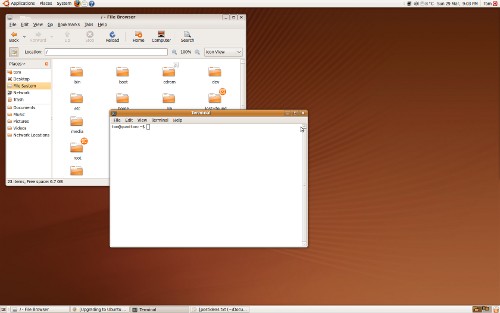
Ubuntu 9.04 Beta desktop

Installing
I always perform a clean install of new Ubuntu releases to completely remove old software and configuration files that have built up over the last six months. I use separate home and Ubuntu system partitions so it’s easy to install Ubuntu without wiping out my files. However, once I’ve booted the live CD I use the file browser to archive all the hidden application configuration files in my home directory so I get the new default desktop.

The new ext4 filesystem is now stable and included in Ubuntu but will not be the default for this release. After reading about the problems with ext4 wiping out files, I decided to play it safe and stick with ext3 for now.

The first problem I ran into is one I’m familiar with from past Ubuntu installations. The software repository mirror for Canada is so slow to respond that updating the package listings takes longer than the actual installation. I just browsed the Internet from the live CD and waited for this step to finally complete.

Issues
After logging in to the new system I tried to enable the proprietary Nvidia driver with the hardware drivers utility. I forgot about the unusably slow repository, so the driver download would not progress. I had to kill the driver utility to stop it from trying forever to download the driver, and then kill the backend process separately. After selecting a faster repository mirror I was able to install the drivers and download updates.

Since installing Ubuntu 8.10 I’ve never been able to work out the audio glitches. Things don’t look much better in 9.04 so far. Firefox will randomly stop playing sound, and then hang when I close it to restart. Also, the first time I logged in I got crackling and static sounds and restarting PulseAudio fixed it. I’ve never had this particular issue before, and it hasn’t happened again, so I’m hopeful that it was a one-time problem.

Ubuntu doesn’t crash often for me, but when it does it’s usually caused by a 3D application. I’ve played Civilization 4 via Wine on Ubuntu 8.10 for a long time without a problem, but the first time I started playing in 9.04 ended with a crash. My monitor actually lost it’s signal after the crash, which would suggest that the Nvidia driver is to blame. The magic SysRq key combo, Alt+SysRq+REISUB, allowed me to safely reboot. I hope that the newer Nvidia driver isn’t less stable than the old one.

Minor tweaks that I like:

  • The Transmission Bittorrent client’s interface has been tweaked in a few places. It’s now easier to select which individual files to download and set their priority.
  • gedit has controls in its status bar for selecting a highlighting mode and tab mode. These two controls mean I don’t have to dive into the preferences to change the tab mode to spaces for working with Python files, and I can turn on syntax highlighting before I save my file.
  • The default version of Compiz now recognizes GIMP’s toolbox windows and keeps them floated above the image window like Metacity.
  • Synaptic includes a Get Screenshot button in package descriptions. This could be useful, but the button is shown even when no screenshot is available (which seems to be the case for most packages right now). It seems to me that this should be something built into the Add/Remove application rather than Synaptic.
  • Multiple monitor support has supposedly been improved. I haven’t tested this but was impressed that the display preferences utility offered to open Nvidia’s utility:

    It appears that your graphics driver does not support the necessary extensions to use this tool. Do you want to use your graphics driver vendor’s tool instead?

  • Ubuntu chooses font settings automatically depending on your display hardware. For me, this meant that subpixel smoothing was turned on for my LCD like it should be. Previously I’ve used a custom font configuration, but the defaults look acceptable now. [update] Mackenzie has pointed out in the comments that these font DPI adjustments are now back to their defaults.

If you’ve tried the beta, how’s it been for you? Any new features in particular you like?

Read more...

Stop Wine From Beating Your Windows App with The Ugly Stick

Applications running with Wine don’t have to look so appalling!

Ubuntu 8.04 is planned to have usability improvements for Wine, among these improvements is a theme for Wine applications that matches the GTK theme. Can’t wait until April?

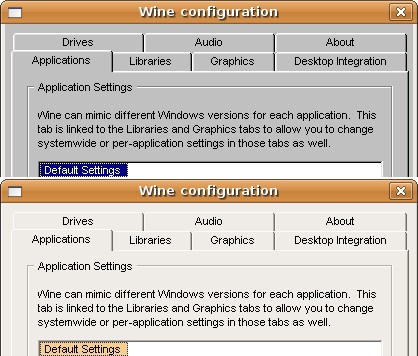
The simplest way to theme Wine is to use the registry to change the colour scheme. Observe the difference between default Wine 0.9.46 and Wine with a Human colour scheme:

Wine colour schemes

Much better! You can install this colour scheme by pasting the contents of this text file into your ~/.wine/user.reg file.

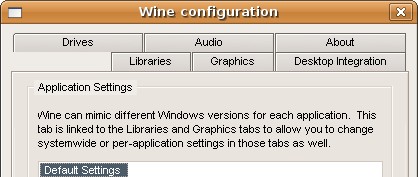
A colour scheme is nice, but the widgets are still plain squares. It’s possible to get a look like this:

Wine Clearlooks theme

However, in the current Wine versions full theming is too slow to be usable. (You can watch it draw individual lines in slow motion.) If the Wine developers fix this in time for Ubuntu 8.04, a matching Wine theme will be used by default.

Still want to try it out anyways? Download the theme, extract the folder, and run winecfg. Go to the Desktop Integration tab and click Install theme. Load the msstyles file, and select Clearlooks in the Theme drop down box. If it’s so slow with the theme on that you can’t even turn it off, you can disable the theme by removing your ~/.wine/user.reg file.

Have any tips for improving the appearance of Wine applications with Linux? Leave a comment below.

Read more...

  ©Template by Dicas Blogger.