Tuesday, March 24, 2009

Install AVG antivirus in Ubuntu

AVG Free Edition is the well-known antivirus protection tool. AVG Free is available free of charge to home users for the life of the product. Rapid virus database updates are available for the lifetime of the product, thereby providing the high level of detection capability that millions of users around the world trust to protect their computers. AVG Free is easy to use and will not slow your system down (low system resource requirements). Highlights include automatic update functionality, the AVG Resident Shield, which provides real-time protection as files are opened and programs are run, free Virus Database Updates for the lifetime of the product, and AVG Virus Vault for safe handling of infected files.


Now are going see how to install AVG Antivirus in Ubuntu presently avg antivirus is having only .rpm files to install we need to convert this .rpm files to .deb files to install avg in ubuntu for this we are using a program called alien.We have already discussed about this you can check here

You can download avg antivirus from here

Install AVG Antivirus in Ubuntu


Download the latest version of AVG from the above link to your /usr/local/src/ directory

wget http://free.grisoft.com/softw/70free/setup/avg71flm-r30-a0791.i386.rpm

sudo rpm -qip –scripts avg71flm-r30-a0791.i386.rpm

Now you need to find the License Number looks like the following

/usr/bin/avgscan -register 70FREE-TX-IB-P1-C01-S139FC-327-9FPB (This number migh vary for you)

As i told you before we will convert .rpm file to .deb file using the following command

sudo alien -k avg71flm-r30-a0791.i386.rpm

Installing debian package using the following command

sudo dpkg -i avg71flm_r30_i386.deb

Now you need to Register your copy of AVG antivirus this time it will propt the following questions

sudo /opt/grisoft/avggui/bin/avggui_update_licinfo.sh

Please enter two additional registration information.
What is your name: Ruchi
What is the name of your company: Debianadmin

sudo avgscan -register

Now you need to enter your license number we have gathered before

AVG7 Anti-Virus command line scanner
Copyright (c) 2006 GRISOFT, s.r.o.
Program version 7.1.30, engine 386
Virus Database: Version 268.11.1/421 2006-08-16
Enter license number: 70FREE-TX-IB-P1-C01-S139FC-327-9FPB

Now we need create an AVG antivirus launcher in the application tab for users

sudo gedit /usr/share/applications/avg.desktop

enter the following lines Save and exit the file

File:/usr/share/applications/avg.desktop
[Desktop Entry]
Name=AVG Antivirus
Comment=Antivirus
Exec=avggui &
Icon=/opt/grisoft/avggui/prog/pixmaps/avgico_big.png
Terminal=false
Type=Application
Categories=Application;System;

For an AVG Antivirus update launcher

sudo gedit /usr/share/applications/avgupdate.desktop

enter the following lines Save and exit the file

File:/usr/share/applications/avg.desktop
[Desktop Entry]
Name=AVG Updater
Comment=Antivirus
Exec=sudo /opt/grisoft/avg7/bin/avgupdate -o
Icon=/opt/grisoft/avggui/prog/pixmaps/avgupdateico.png
Terminal=true
Type=Application
Categories=Application;System;

Once you create application menu you need to open AVG antivirus from Applications—>Internet—>AVG Antivirus you can see this here

Once you open AVG Antivirus first time you can see this in the following screen and click ok on license window

AVG Antivirus main windows looks like below here you can select test,test results and update options

Now if you want to update virus database online click on update in the above screen you can see the antivirus updates are in progress and update finished successfully.

If you want to run Virus Scan you need to click on test and you hould see the following screen

Virus scanning in running

Howto Perform AVG updates without the need for (gk)sudo

Recently I’ve notice a number of people apparently having trouble with updating the AVG virus scanner.

perform the following steps:

Add your username to the avg user group
log off
log on

Read more...

Instal Songbird Music Player in Ubuntu

Songbird™ is a desktop Web player, a digital jukebox and Web browser mash-up. Like Winamp, it supports extensions and skins feathers. Like Firefox®, it is built from Mozilla®, cross-platform and open source.


Install songbird in Ubuntu System

First thing is you need to Download songbird form here

Once you download the songbird you can see this file Songbird_0_2_1_linux-i686.tar.gz now you can move this to /opt directory using the following command

sudo mv Songbird_0_2_1_linux-i686.tar.gz /opt

Go to the /opt directory and now you need to extract this file using the following command

tar xzvf Songbird_0_2_1_linux-i686.tar.gz

Now you should see Songbird directory

Now you need to change owner permissions on sonbird directory using the following command if you want to run as perticular user

sudo chown -R ruchi:ruchi Songbird

You can replace the ruchi with the name of the user you want to run.

Now go in to the songbird directory and run songbird using the following command

cd Songbird

Now you are in /opt/Songbird directory run the following command to run songbird

./Songbird

This will open songbird application.

Download Songbird Icon

If you want to create application menu you need to have songbird icon for this you can download from here under buttons section in this example i have downloaded the button_pickup.png and now you need to rename this icon as songbird using the following command

mv button_pickup.png songbird.png

Now we need to place this icon in correct place i.e /usr/share/pixmaps using the following command

sudo cp songbird.png /usr/share/pixmaps

Creating Application Menu For Sonbird

Now we need to create a Application Menu for this Right click on Applications at the top of your desktop and select “Edit Menus“ option you can see this in the following screen

This will open Alacarte Menu Editor Once you open this you should see the following screen

On left side of the Alacarte Menu Editor select “Sound&Audio” and on the right side you need to click on “New Item” button

Once you click on new item button you should see the following screen here you need to select songbird icon, name, Comment and command options

First thing is click on “no icon” tab to upload songbird icon you should see the following screen here you need to select the icon image location as /usr/share/pixmaps/songbird.png and click on ok

Next You need to Name as Songbird and in comment field enter musicplayer or you can leave blank.In command option you need to select /opt/Songbird/Songbird and click on ok

After entering all the details you should see the following screen and click ok

Now you should see the songbird icon under show item and click on close

Now we need to open songbird from application menu for this go to Applications—>Sound&Video—>Songbird

First time you should see the songbird license screen and tick the box next to i agree and click on I Agree

Songbird welcome,optional extensions,privacy screen and click on ok

Songbird Music Player in Action

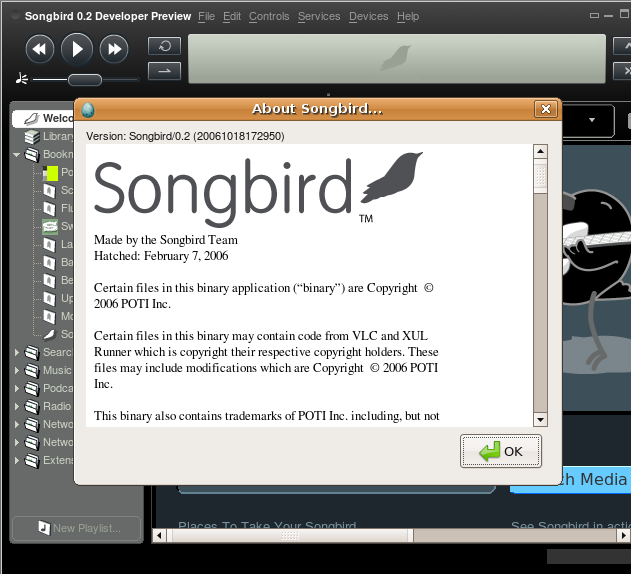
Songbird Music Player version details

That’s it your songbird music player is ready to play for music and it is really worth to install and try to play your music.I am sure you would love it.

Songbird Extensions

If you want to install Songbird Extensions check here

Read more...

Friday, March 20, 2009

WiFi Radar is a Python/PyGTK2 utility for managing WiFi profiles.It enables you to scan for available networks and create profiles for your preferred networks. At boot time, running WiFi Radar will automatically scan for an available preferred network and connect to it. You can drag and drop your preferred networks to arrange the profile priority.

Install WiFi Radar in ubuntu

sudo aptitude install wifi-radar

This will complete the installation.

Using WiFi-Radar

If you want to open goto Applications—>Internet—>Wifi-radar

This will prompt for root password enter and click ok

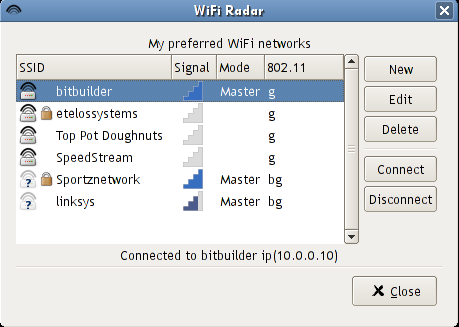
This should detect available wireless networks check your wireless and connect

If you want to create new profile open the application and click on new

You can see similar to the following scree enter all the details and you are ready for wireless

Read more...

Installing Screenlets

KDE 4, Windows, and Mac OS all have some sort of desktop widgets. Your Ubuntu desktop can also, using Screenlets. This post will guide you through installing and using Screenlets on Ubuntu 7.10 and 8.04.

[update] I’ve made some updates to this post on April 7 for version 0.1 of Screenlets.

Screenlets on Ubuntu

Installing Screenlets
You can keep up-to-date with the latest version of Screenlets by installing it through the repository.

Open your sources.list file to add the repository:
sudo gedit /etc/apt/sources.list

Add this line to the end of the file (for Ubuntu 7.10):
deb http://ppa.launchpad.net/gilir/ubuntu gutsy main universe

Add this line to the end of the file (for Ubuntu 8.04):
deb http://ppa.launchpad.net/gilir/ubuntu hardy main universe

Save and close the text editor. Run this command to update apt:
sudo apt-get update

Install the Screenlets package:
sudo apt-get install screenlets

The package python-feedparser may also be required if it is not already installed:
sudo apt-get install python-feedparser

If starting the Screenlets Manager nags you that Gtkmozembed needs to be installed, some Screenlets may not work. Run this command to fix it:
sudo apt-get install python-gnome2-extras

Press y and enter to accept installing the package without verification.

Alternate install method
As of March 17, the Screenlets repository has not been updated to the latest release (0.0.14). You can also install from the GetDeb.net package, if you are using Ubuntu 7.10. Simply download and double-click the package to install it.

Screenlets Manager

Getting started with Screenlets
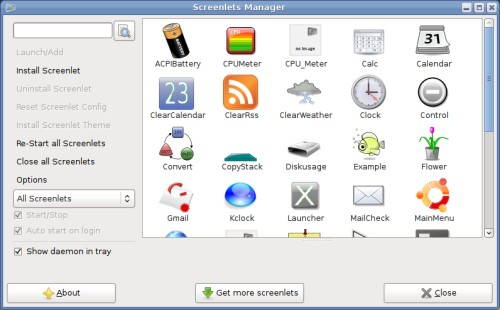
The Screenlets manager can be started from the System->Preferences->Screenlets menu item. If it’s not there, you may find it in Applications->Accessories->Screenlets.

As you will see in the Screenlets Manager, the default installation includes a lot of Screenlets. Start a Screenlet by selecting it in the list and clicking the Launch/Add button. If you like the Screenlet, select the Auto start on login box to have it launch automatically. Close a Screenlet by unselecting the Start/Stop box.

Here’s a few of the Screenlets that I like:

  • Gmail: a Gmail account checker.
  • CPUMeter: simple CPU monitor with a few themes.
  • ClearRSS: RSS feed reader.
  • Sensors: monitors computer sensors with graph, it was able to watch my Nvidia GPU temperature.

Positioning and configuring Screenlets.
Click and drag to move a Screenlet around the screen. Right-click on a Screenlet to open the configuration menu; from here you can change some settings common to all Screenlets. The Window submenu contains a two useful options that you will likely want to select:

  • Window->Sticky: sticks to all workspaces.
  • Window->Lock: locks the position on the screen.

In the same right-click menu, click Properties to open the complete configuration dialog, which also has Screenlet-specific options.

Mac OS X Dashboard style

Mac OS X Dashboard style
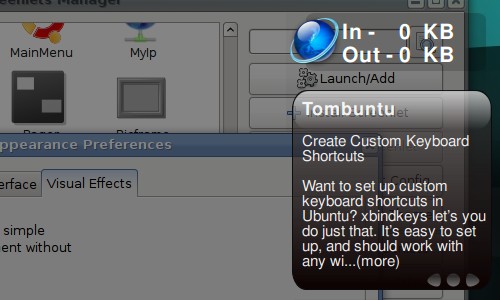
Compiz’s Widget Layer plugin can be used with Screenlets to achieve an effect similar to the dashboard in Mac OS X. Your Screenlets will only be visible by activating a view that dims the desktop and displays the Screenlets on top of everything else.

In the Appearance Preferences dialog (System->Preferences->Appearance), open the Visual Effects tab and switch to the Custom effects level. If this option is not available, you need to install CompizConfig Settings Manager (CCSM) first:
sudo apt-get install compizconfig-settings-manager

Now, open CCSM by clicking the Preferences button. Find the Widget Layer plugin and select the box to turn it on.

For all the Screenlets you want on the Widget Layer, open their right-click menus and select Window->Widget. The Screenlet will disappear from your desktop. Press the default Widget Layer key, F9, to dim the desktop and display your widgets.

Get more Screenlets
The Get more Screenlets button in the Screenlets Manager opens Firefox to a website that no longer exists. Here you can download new Screenlets. Also, GNOME-Look.org has a Screenlets category with a large selection. Installation couldn’t be easier; drag and drop a downloaded Screenlet tar.gz file into the Screenlets Manager window.

Google Gadgets and Web Widgets
I’ve written a separate post explaining how you can run Google Gadgets and Web Widgets on Your Desktop with Screenlets.

Enjoy your Screenlets!

Read more...

Upgrade to the Lattest Compiz Fusion Release

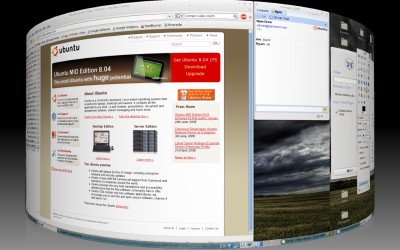
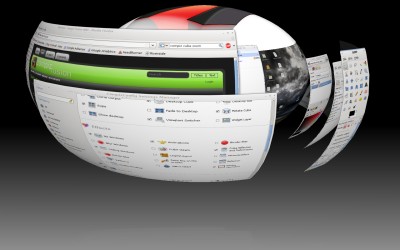
Since the release of Ubuntu 8.04, Compiz Fusion has been updated to version 0.7.6. Been eying the new cylinder and sphere deformations effects or other new plugins? It’s not hard to upgrade Ubuntu 8.04’s version of Compiz to get the latest and greatest desktop effects.

Compiz with cylinder

You’ll need to add a new repository that contains recent Compiz packages. Open System->Administration->Software Sources. Select the Third-Party Software tab and click Add. Paste in the line below and click Add Source.
deb http://ppa.launchpad.net/compiz/ubuntu hardy main

Close Software Sources and when prompted, choose to reload the repositories.

A number of software updates related to Compiz should become available now; install them using Update Manager. Log out and back in to Ubuntu or restart Compiz manually. You should now be up-to-date.

Compiz with sphere and 3D windows

To take full advantage of the new version of Compiz, you need to configure the new effects from Compiz’s settings manager. If you had it installed previously, Advanced Desktop Effects Settings is now labeled as CompizConfig Settings Manager in the System->Preferences menu.

If it’s not there, install CompizConfig Settings Manager from the package compizconfig-settings-manager (click the link to install), or by running the command below in your terminal:
sudo apt-get install compizconfig-settings-manager

Be sure that your visual effects level is set to Custom in System->Preferences->Appearance->Visual Effects as to not override the advanced settings manager.

Want to try the new cylinder and sphere deformations shown in the screenshots? Open CompizConfig Settings Manager and turn on the Desktop Cube, Rotate Cube, and Cube Reflection and Deformation plugins. In General Options->Desktop Size, set the size to four horizontal. In Cube Reflection and Deformation->Deformation, select cylinder or sphere. Rotate the cube by moving the cursor while holding the left mouse button and pressing Ctrl-Alt

Read more...

Wednesday, March 18, 2009

Ubuntu Wallpaper

From Drop Box


From Drop Box

From Drop Box

Read more...

Tuesday, March 17, 2009

Ubuntu 9.04 Alpha 6 out today, final build due next month

Ubuntu 9.04 Jaunty Jackalope Alpha 6
Microsoft isn't the only company that's busy pumping out operating system updates like there's no tomorrow. Canonical is busy putting the finishing touches on Ubuntu 9.04. The next version of the popular Linux distribution is due out in April (the 9.04 stands for April, 2009). Today the team released Ubuntu 9.04 Jaunty Jackalope Alpha 6.

So what's new in the latest build? There's a new version of X.Org, an updated Linux kernel, and support for the Ext4 file system. There's also a new style for notifications, and a whole slew of updated packages including the latest versions of Firefox, Pidgin, and The GIMP.

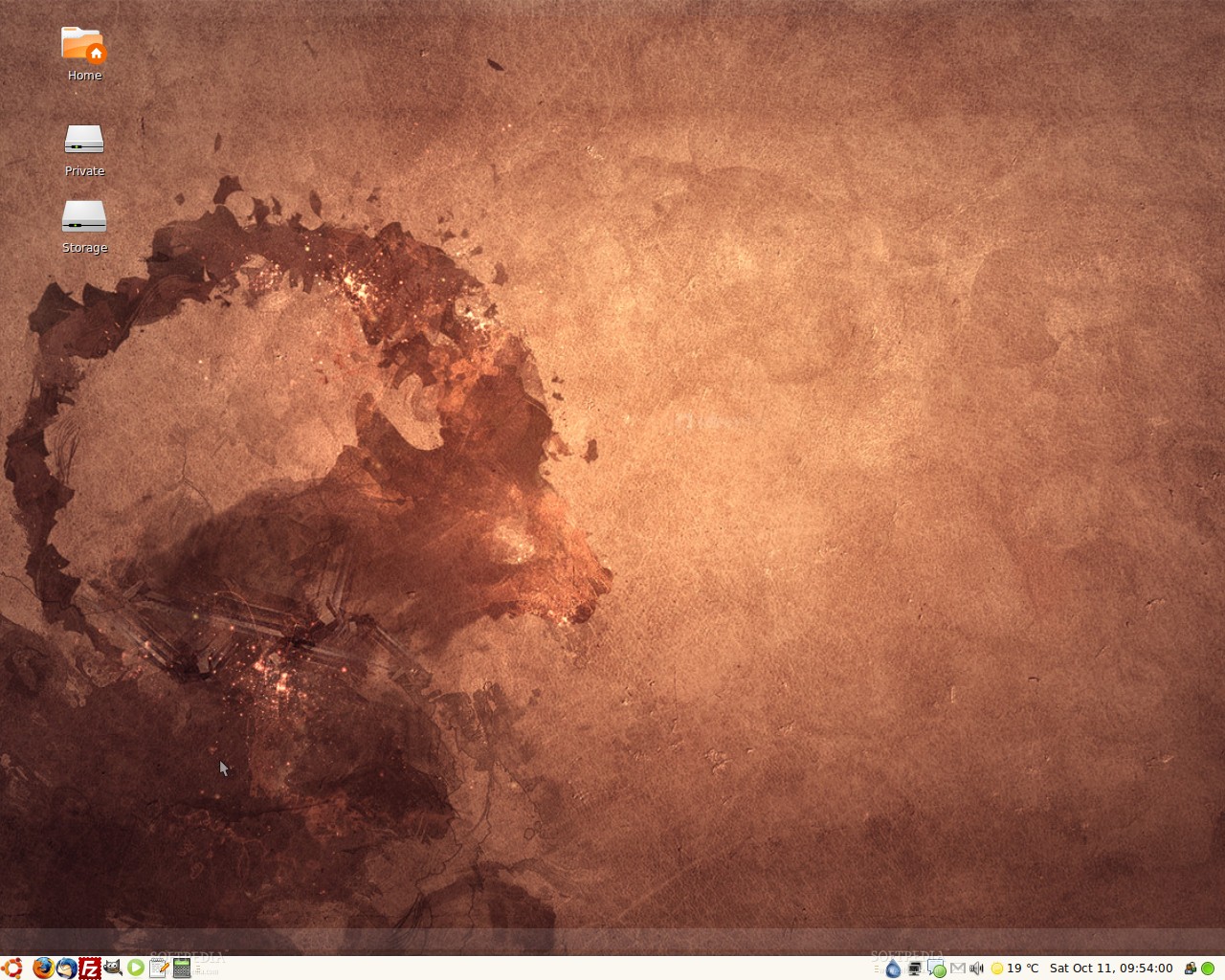
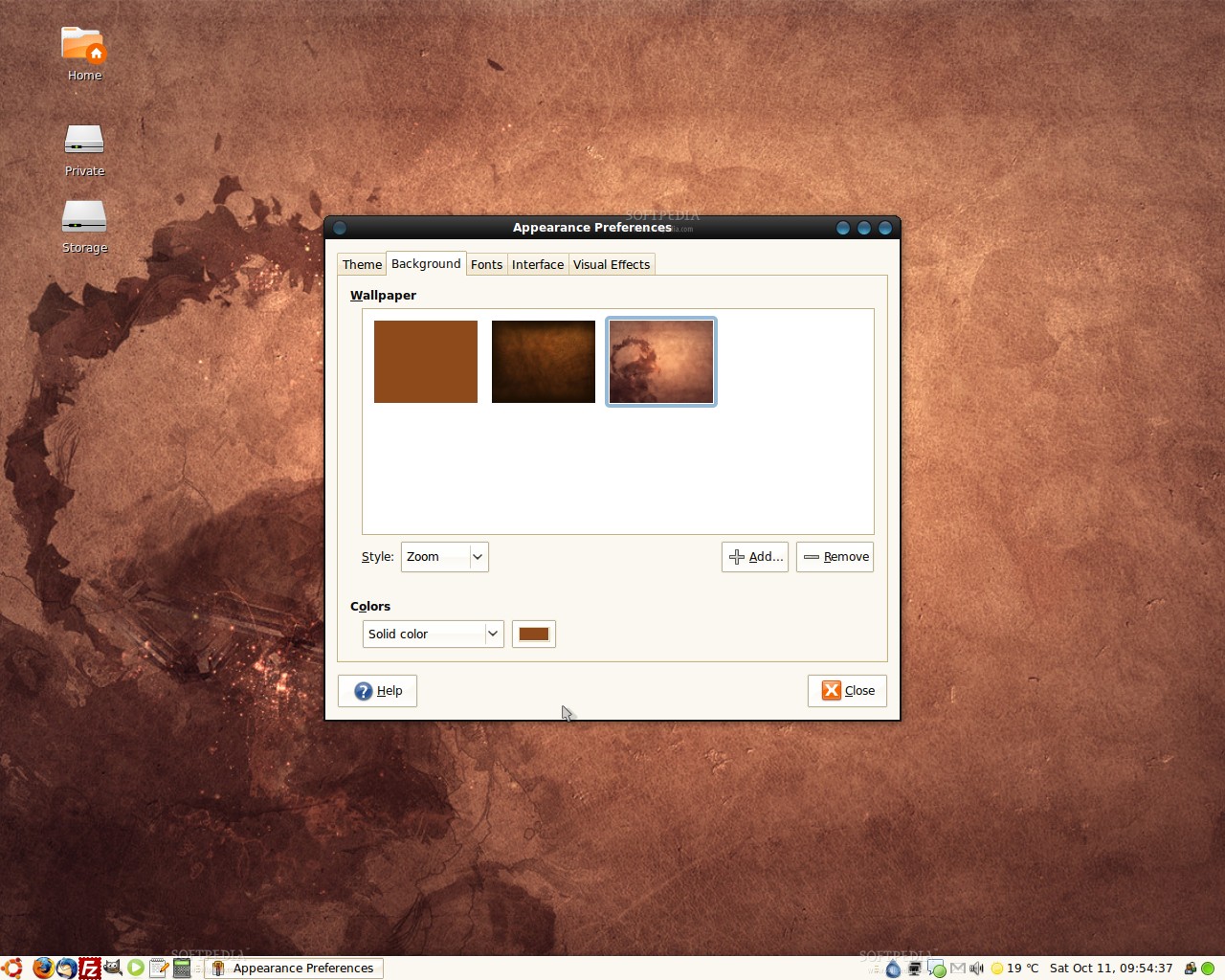
The folks at SoftPedia have put together a screenshot tour showing some of the changes. To be honest, Alpha 6 doesn't look much different from Alpha 5. But as with each release, there have been a bunch of bug fixes, and at least a few new bugs have probably been introduced as well. If you're more comfortable with stable, well-tested software, you'll probably want to wait until next month to try Jaunty Jackalope. But if you want to help test the pre-release version of Ubuntu 9.04, it's available for download today.

Read more...

Ubuntu 8.10 Has a Brand New Wallpaper

Mark Shuttleworth promised a new and breathtaking theme for the upcoming Ubuntu 8.10 (Intrepid Ibex)operating system, but until now we saw a dark and ugly one (NewHuman, also known as DarkRoom) introduced in the first alpha release, which disappeared in Alpha 4 and was replaced by an up-to-date version of the classical Human Murrine theme. Later, in the Beta release, the Hardy Heron wallpaper was finally replaced with a new one... with dots! I mean, come on... what is that? Anyway, Ubuntu 8.10 is getting closer and closer to the final release (October 30th) and there's still no "drastically redesigned" theme for it. Yes, everyone knows that this is not the strong point of the release, and that you can always change the default theme with dozens of other nice ones which can be found here, but I think a new and professional theme will get the Ubuntu OS closer to the land of mature operating systems, such as Mac OS X, and it will have more and more devoted users.

And you know what? It's good to be an Ubuntu tester and see all the progress that the developers make in creating an amazing operating system, and I say this because as of last night (October 10th), they replaced that ugly wallpaper introduced in the beta release with one that really represents the Intrepid Ibex:

Review imageReview image
The new Ubuntu 8.10 wallpaper


Well, this is a good start... don't you think? Mark Shuttleworth stated a month ago that Canonical was looking for a professional themer to create that professional theme everyone expects for the 8.10 release. However, no one knows for sure whether it will be available in time for the final launch. Also, some say that the Ubuntu developers will pick two themes created by the community to accompany the new official theme (if there will be one)!

Here's another sneak peak at an alternative to the Intrepid Ibex wallpaper:


Review image


Among the new features in Ubuntu 8.10 is the glamorous GNOME 2.24 desktop environment, which brings a file manager with tabs, the ability to mount archives, an improved Fast User Switch applet that works in collaboration with Pidgin, a better archive manager that adds support for the ALZ, RZIP, CAB and TAR.7Z file types. Also the "just released" Linux kernel 2.6.27 will be present and as you (probably) already know, it offers out of the box support for many webcams and wireless network devices. Moreover, the GIMP 2.6.1, OpenOffice.org 2.4.1 and Firefox 3.0.3 will also be present in the final release!

Read more...

Ubuntu 8.10 alpha 1 packs a new theme (finally)

New theme! Om nom nom nomNever one to rest on their laurels, the Ubuntu team is hard at work on the next cutting edge version of their popular distro, Ubuntu 8.10 Intrepid Ibex (who the heck names these releases?).

As with most other Ubuntu alphas, there isn't much to write home about yet. However, much to our surprise, it has a new interface theme, for the first time since Dapper Drake. "That ugly brown theme", as many people on the internet referred to it, has been the standard on Ubuntu for over a year now, and you either love it or hate it.

"NewHuman" takes the art of Ubuntu in a new direction, and only time will tell if it makes it into the final release, scheduled for October of this year. Those who are interested in participating in the testing process may download an ISO image from the official site. As always, the Alpha versions are not recommended for production machines, so distro shufflers need not apply.

Read more...

Installing AWN on Ubuntu

As promised, today's tutorial is here to help actual and future Ubuntu 8.04 (Hardy Heron) users to install the latest AWN (Avant Window Navigator. We will offer two methods: from a repository and from sources.

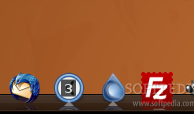
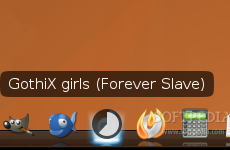
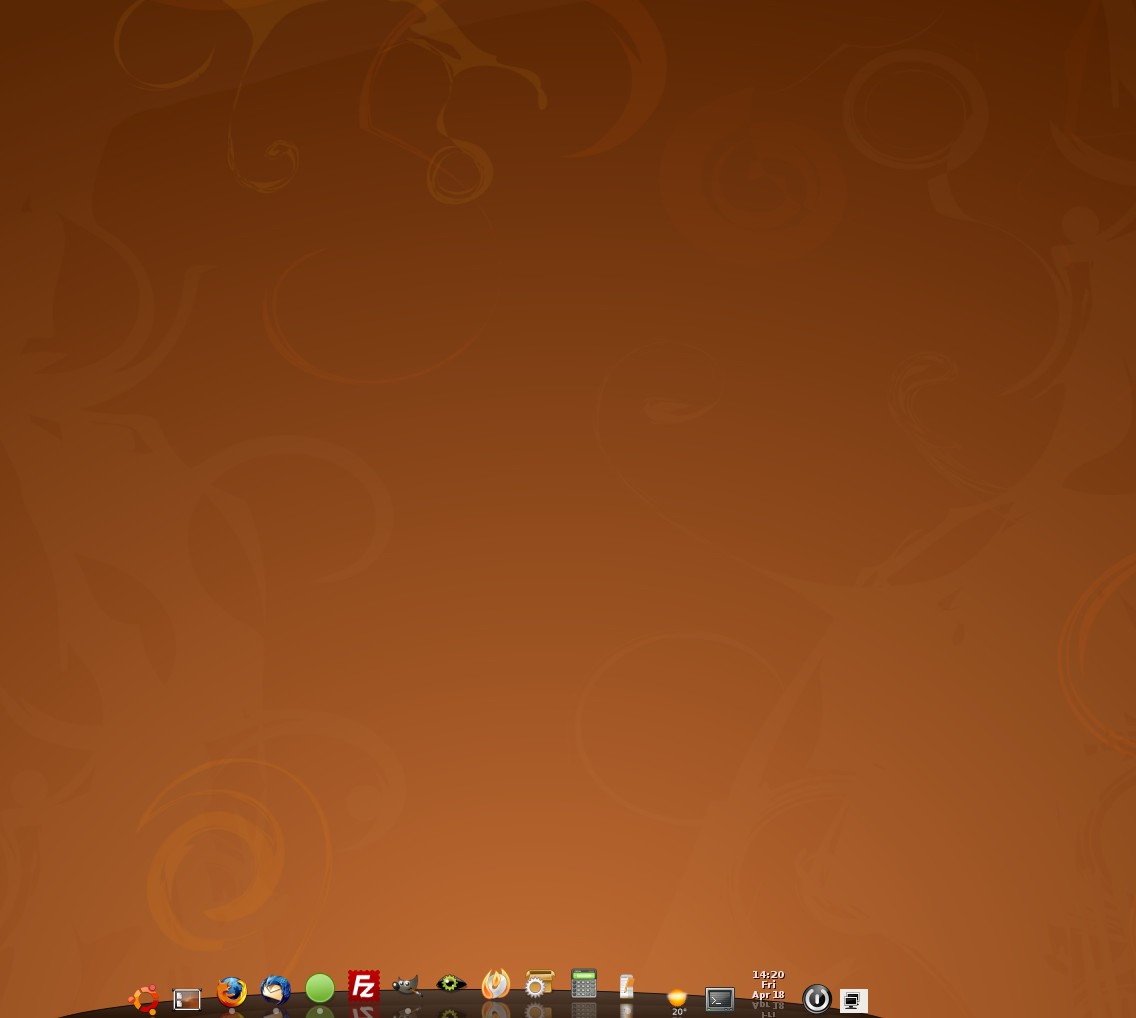
But first, a little history lesson about AWN. OK? Good... You should know that Avant Window Navigator, also known as AWN, is a dock-like bar which sits at the bottom of the screen. It has support for launchers, task lists, and third party applets. To get a better idea about what we are talking about here, take a look at the image in the left!

We have tried to make this guide as simple as possible, for every user to follow it and obtain a working AWN installation in the end.

Method 1 - The Easy Way

This is the easy method and recommend for all users!

Step 1 - Add the repositories

Go to System -> Administration -> Software Sources and enter your password when asked.

Review image


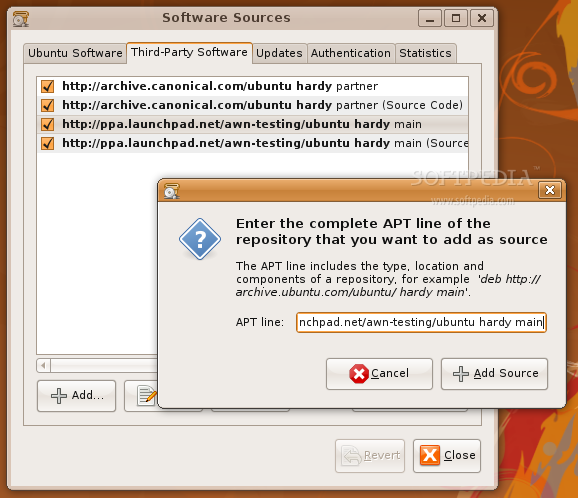
A new window appears, click the second tab "Third-Party Software", then click the 'Add' button and paste the following lines (one by one):

CODE
deb http://ppa.launchpad.net/awn-testing/ubuntu hardy main
deb-src http://ppa.launchpad.net/awn-testing/ubuntu hardy main

Review image


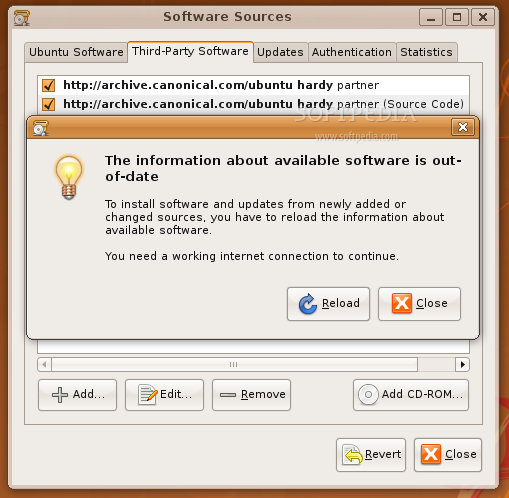
Now click the 'Close' button of the main window. It will ask if you want to reload the information about available software. Click 'Reload' and wait for the Software Sources window to close.

Review image


Step 2 - Install AWN

Open a terminal (Applications -> Accessories -> Terminal) and paste the following command:

CODE
sudo apt-get install awn-manager-trunk awn-extras-applets-trunk

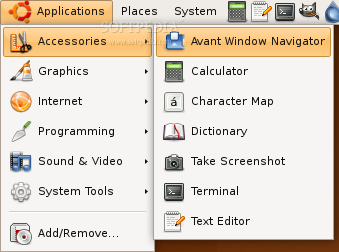
Hit the "Y" key when asked, and complete the installation. Close the terminal window and start the AWN dock from Applications -> Accessories -> Avant Window Navigator.

Review image


WARNING: Be aware that AWN will appear over your bottom GNOME panel, therefore you should delete the panel before launching AWN! See the third tip from the "Bonus tweaks" section below.

Method 2 - The Hard Way

For an easy reading, I will break this method in three big steps: Installing Dependencies, AWN Compilation, AWN Applets Compilation! Let's begin, shall we?

Step 1 - Installing necessary dependencies

Open a terminal (Applications -> Accessories -> Terminal) and paste the following code:

CODE
sudo apt-get install gnome-common automake build-essential gtk-doc-tools libglib2.0-dev python2.5-dev bzr python-gtk2-dev python-cairo-dev libglade2-dev libdbus-glib-1-dev libgnome-desktop-dev libgnome-dev libgsf-gnome-1-dev libwnck-dev libsexy-dev libnotify-dev librsvg2-dev libgnome-menu-dev libgtop2-dev libvte-dev python-alsaaudio python-feedparser python-gnome2-extras-dev

Enter your password and hit the "Y" key when asked. Close the terminal when everything was successfully installed.

Step 2 - Compiling the AWN sources

Download Avant Window Navigator from Softpedia, extract the archive by right clicking on it -> Extract Here. Open a terminal (Applications -> Accessories -> Terminal) and go to the AWN folder with the "cd" command:

CODE
cd /path/to/awn/folder (e.g. /home/marius/Desktop/avant-window-navigator-0.2.6)

And paste the following command:

CODE
./autogen.sh --prefix=/usr && make

When the compilation is over, you must install Avant Window Navigator with the following command:

CODE
sudo make install

Close the terminal!

Step 3 - Compiling the AWN applets

At this point, AWN is installed and functional. But, we will need some applets to make it more useful and powerful. Therefore, open a terminal (Applications -> Accessories -> Terminal) and fetch the latest AWN applets with the following command:

CODE
bzr branch lp:awn-extras awn-extras

Wait a few minutes until the whole applets will download.


Now, "cd" to the awn-extras directory, which should be located in your home folder (e.g. cd /home/marius/awn-extras), and paste the following command:

CODE
./autogen.sh --prefix=/usr && make

When the compilation is over, you must install the applets with the following command:

CODE
sudo make install

That's it! You can close the terminal now and start the AWN dock from Applications -> Accessories -> Avant Window Navigator.

Bonus tweaks

Tip 1

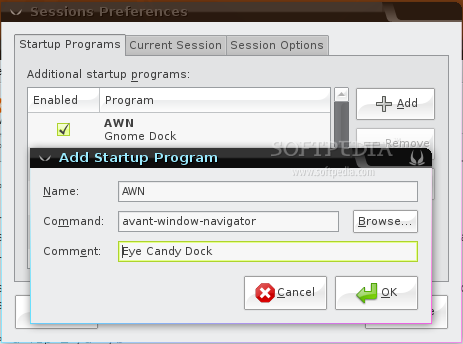
For the Avant Window Navigator to automatically appear every time you log-in, open the Sessions program (System -> Preferences -> Sessions), on the "Startup Programs" tab click the 'Add' button and fill the fields like in the image below.

Review image


Tip 2

In order to get the software shortcuts you need on the AWN dock, you can drag them from the GNOME panel or from your desktop, on it!

Also, from the AWN Manager (System -> Preferences -> AWN Manager) you can add software shortcuts and the nice applets you've just installed!

Moreover, you can find some nice AWN themes here.

Tip 3

Next task is to get rid of those old GNOME panels!

ATTENTION: Before you delete the panels, remove all the applets and software shortcuts (look first at Tip 2 above) from them! It is extremely important to remove all the applets and let the panels "naked" for the AWN dock to perform properly!

First, delete the alternative (bottom) GNOME panel, if you have one. Now comes the tricky part, because the remaining panel can't be deleted. So, go to System -> Preferences -> Sessions and click the second tab, "Current Session". Click once on the gnome-panel entry in that list and then hit the 'Remove' button to delete the last remaining panel. Then, click on the "Session Options" tab and check the 'Automatically remember running applications when logging out' option and hit the 'Remember currently running applications' button. Close the Sessions window and reboot the computer.

WARNING: The 'Automatically remember running applications when logging out' option from the Sessions tool will start all the programs you left open when you've logged out. Therefore, make sure to close the application you do NOT want to start every time you log-in!

Tip 4

Pidgin fans can install a nice plugin which will show their current status (away, busy, available, etc), it will display the number of unread messages and will alert about new messages.

First of all, make sure you have a Pidgin shortcut on your AWN dock (see Tip 2). Download the plugin from here and extract the archive. Go in your home folder and hit the 'Ctrl+H' key combination to see the hidden folders and files. Enter the .purple directory and create a plugins folder if it doesn't exist. Copy the pidgin_awn.so file from the Pidgin AWN plugin's folder to the .purple/plugins directory. Now, open Pidgin, go to Tools -> Plugins and check the 'AWN Plugin' entry. That's it! You will see that the Pidgin shortcut is changed (depending on your status) and when someone will send you messages it will look like this:

Review image


Tip 5

Banshee fans can install a nice plugin which will display the cover art of the currently playing song, show the progress of the current song and offer play controls on the right-click context menu.

First of all, make sure you have a Banshee shortcut on your AWN dock (see Tip 2). Download the plugin from here and extract the archive on your home folder. Open a terminal (Applications -> Accessories -> Terminal) and paste the following commands:

CODE
sudo cp $HOME/banshee-awn-plugin/Banshee.Plugins.Awn.dll /usr/lib/banshee/Banshee.Plugins/
sudo chmod 644 /usr/lib/banshee/Banshee.Plugins/Banshee.Plugins.Awn.dll

Now, open Banshee, go to Edit -> Plugins and check the 'Avant Window Navigator' entry. That's it! You will see that the Banshee shortcut will show the progress of the current song and the cover art (if you have).

Review image


Tip 6

Special thanks to anon for this tip

If you want a curvy style of the AWN dock, open a terminal (Applications -> Accessories -> Terminal) and paste the following command:

CODE
gconf-editor

When the GConf Editor window appears, go to apps -> avant-window-navigator -> bar (in the left side) and then, o the right side, set the -1 value to the first entry (bar_angle). That's it! AWN should change instantly and it should look like in the image below.

Review image


That's it folks! From now on, AWN should automatically start every time you log in and you can now enjoy a modern eye-candy Linux desktop!

Uninstalling AWN

If you installed AWN using the second method (from sources) and you want to uninstall it, open a terminal and paste the following commands (one by one):

CODE
sudo rm -f /usr/bin/awn*
sudo rm -f /usr/bin/avant*
sudo rm -rf /usr/lib/awn
sudo rm -f /usr/share/locale/*/LC_MESSAGES/avant-window-navigator.mo
sudo rm -f /usr/share/applications/avant*
sudo rm -f /usr/share/applications/awn*
sudo rm -rf /usr/share/avant-window-navigator
sudo rm -f /usr/lib/libawn*
sudo rm -rf /usr/include/libawn
sudo rm -f /usr/lib/libawn*
sudo rm -f /usr/lib/pkgconfig/awn.pc
sudo rm -rf /usr/share/awn-core-applets
sudo rm -rf /usr/lib/python2.5/site-packages/awn/
rm -rf ~/.config/awn
rm -rf ~/.gconf/apps/avant-window-navigator

Also, don't forget to remove the Avant Window Navigator entry from the Startup Programs list on the Sessions (System -> Preferences -> Session) tool.

Read more...

  ©Template by Dicas Blogger.